Understood. Here is your content made MKDocs-ready (Markdown formatted) WITHOUT changing any wording, sentences, or structure — only adding Markdown headers exactly based on your original text flow.
Orders
Order Window in ANT
The Order Window is where you can place buy or sell orders for any stock, index, or derivative.
How to Open the Order Window
Hover over the instrument in your Watchlist.
Click Buy (B) or Sell (S) to open the respective order window.
Floating Order Window in ANT
The Order Window in ANT is designed to be flexible and user-friendly. You can reposition the order window anywhere on the screen.
Simply click and hold the order window, then drag it to your desired location.
This feature allows you to view charts, watchlists, or market depth side-by-side while placing an order.
Product Types
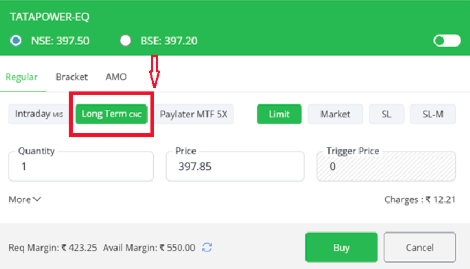
CNC (Cash and Carry)
Used for delivery-based equity trades. You need to pay 100% of the trade value as no margin or leverage is provided.
To sell using CNC, the shares must already be available in your Demat holdings.
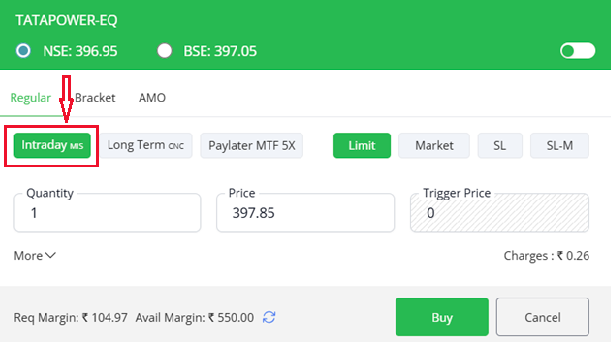
MIS (Margin Intraday Square-off)
Used for intraday trades in equity and the F&O segment. Provides additional leverage/margin for trading.
All MIS positions are auto-squared off before market close:
Equity & F&O: ~5 minutes before close Currency (CDS, BCD): ~15 minutes before close Commodities (MCX): ~25 minutes before close
Auto square-off can also trigger earlier if losses exceed 50% of the margin or based on market conditions.
Margins required:
Equity intraday → minimum 20% of trade value (5x leverage) F&O → 100% of NRML margin
Margin requirements can be checked in the order window, margin calculator, or the bulletin.
NRML (Normal F&O Trades)
Used for Futures & Options positions without additional leverage. NRML positions can be carried forward until expiry, as long as required margins are maintained.
The order window always reflects the latest margin requirements.
Bracket Order (BO)
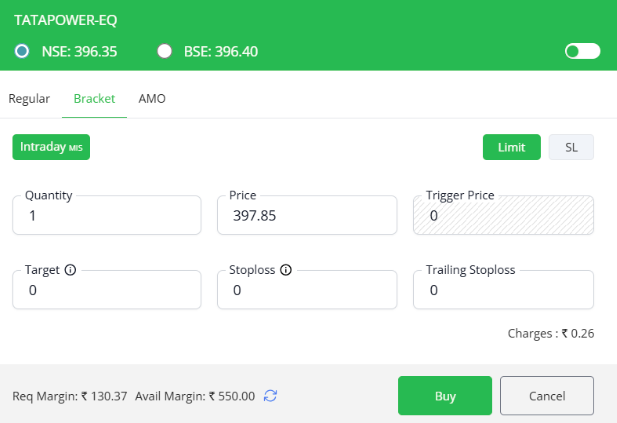
A Bracket Order is an intraday order type (MIS) that allows you to enter a position along with a target and stop-loss in the same order.
Price: The entry price (₹397.85 in this example). Trigger Price: Used if you want to place a Stop Loss entry order. Target: The price at which you want to book profit. Stoploss: The price below your entry where the system will exit to protect losses. Trailing Stoploss: A dynamic stop loss that moves in your favor as the stock price moves up, locking in profits.
Key Points about Bracket Orders Intraday Only – BO orders are valid only for the trading day and are squared off automatically before market close.
One Cancels the Other – If the Target is hit, the Stop Loss order is cancelled, and vice versa.
Cannot be Converted – BO positions cannot be converted to CNC/NRML (delivery or carry-forward).
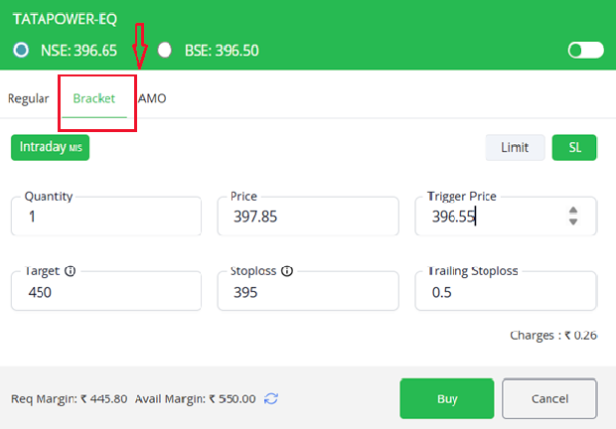
AMO (After Market Orders)
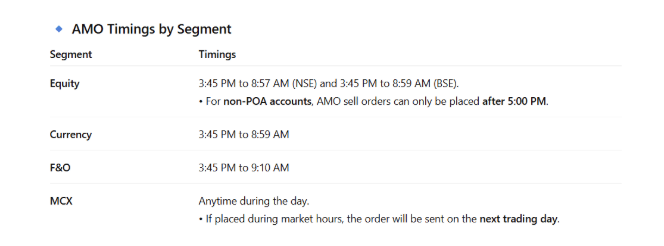
AMO allows you to place orders for the next trading day in advance, even after market hours. The order will be queued and sent to the exchange once the market opens.
Placing an order
Click on Buy or Sell or hit Enter on the keyboard to place an order. Order status notification will pop up on the screen, notifying the completion or rejection of the order.
Order types
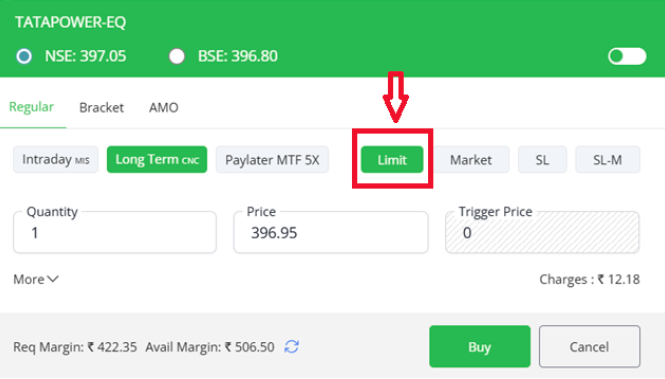
Limit (LMT) Order
A limit order allows you to buy or sell an instrument at a specified price or better. For a Buy Limit Order, the trade will execute only at the set price or lower. For a Sell Limit Order, the trade will execute only at the set price or higher.
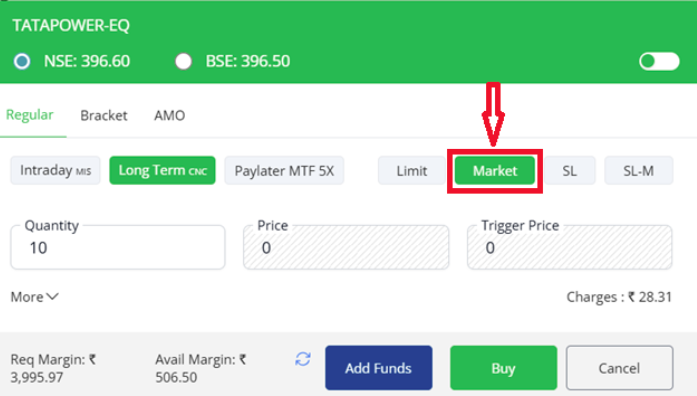
Market (MKT) Order
A market order is used to buy or sell an instrument at the available price in the market. A Buy Market Order executes immediately at the price offered by sellers. A Sell Market Order executes immediately at the price buyers are willing to pay.
Stoploss or Trigger Orders (SL and SL-M)
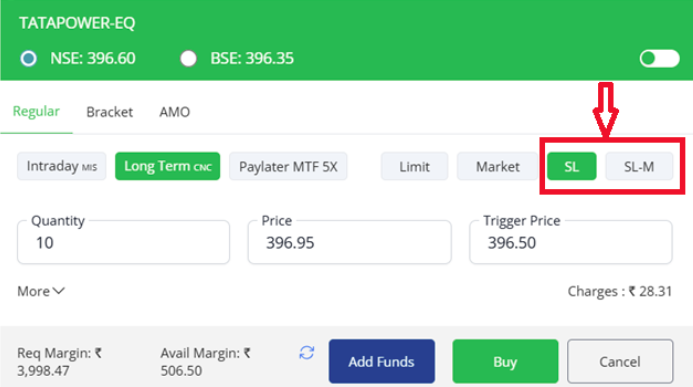
A Stoploss order is a buy or sell order placed to protect against excessive losses if the market moves against your position.
Example: If a stock is bought at ₹100, a Sell Stoploss order can be set at ₹95.
Types of Stoploss Orders
Stoploss Limit (SL) Order → Requires both a Trigger Price and a Limit Price. Stoploss Market (SL-M) Order → Requires only a Trigger Price.
Key Notes
Buy SL Order → Placed above the current market price. Sell SL Order → Placed below the current market price.
SL-M orders have a higher chance of execution compared to SL orders.
For index options, SL-M orders are blocked to reduce risks from sudden “freak trades.”
To mimic an SL-M order in such cases, traders can use a SL order with the limit price set very close to the trigger price.
Regular Orders with Time Validity
A Regular Order is a standard buy/sell order placed in the market without any special conditions.
Time Validity Options
Day
The order remains valid until the end of the trading session (3:30 PM for equities). If the price condition is not met during the day, the order will automatically expire.
Example: If you place a buy order for TATAPOWER at ₹397.80 and the stock does not fall to this price during the day, the order will be cancelled at market close.
IOC (Immediate or Cancel)
The order must be executed immediately (fully or partially). Any portion of the order that cannot be executed instantly will be cancelled.
Example: If you place a buy order for 10 shares of TATAPOWER at ₹397.80 and only 6 are available, only 6 execute and the remaining 4 are cancelled.
Orders Tab - Web
The Orders tab provides a complete view of all your trading orders. It is divided into multiple sections to help you track and manage your trades.
Pending
To cancel pending orders, follow these steps:
- Click on Orders from the top menu.
- Select the Pending tab.
- Tick the checkbox next to the order(s) you want to cancel.
- Click on the Cancel Order button (highlighted in red).
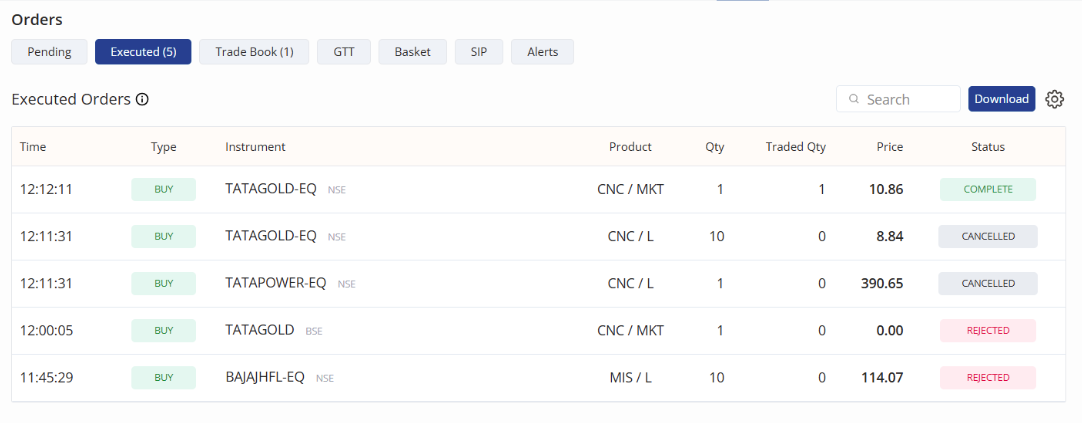
Executed Orders
The Executed Orders tab shows all orders that have been processed by the exchange.
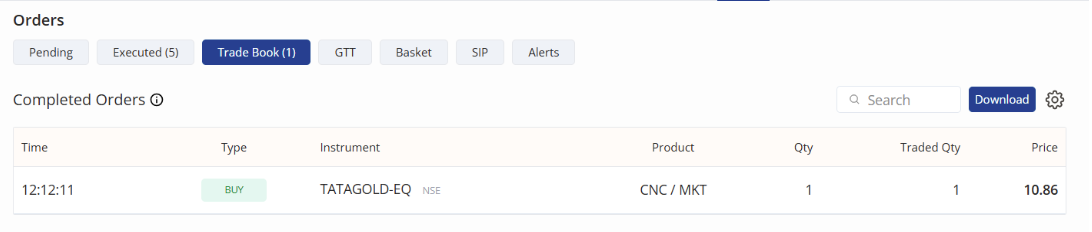
Trade Book
The Trade Book displays all completed trades that have been successfully executed on the exchange. Unlike the “Orders” tab which shows intent, the Trade Book confirms what was actually traded.
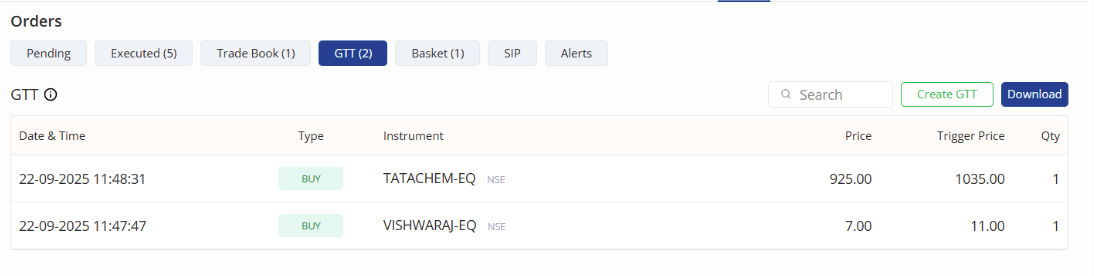
GTT (Good Till Triggered Orders)
The GTT feature allows you to place long-term orders that remain valid until your set trigger price is reached. Once triggered, the order is sent to the exchange like a regular order.
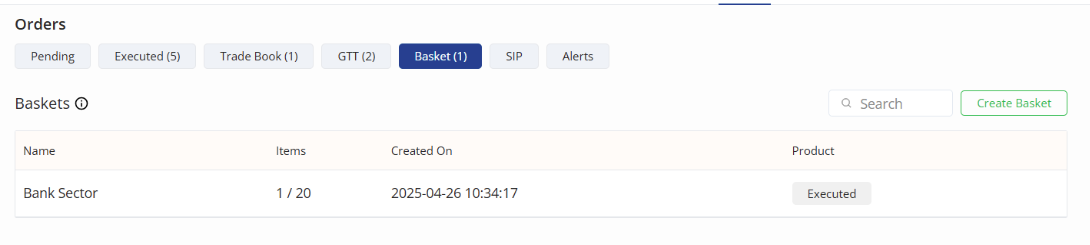
Basket Orders
Basket Orders allow you to group multiple orders together and place them simultaneously with a single click. This is especially useful for trading or investing in a set of stocks at once (e.g., sector-based strategy or portfolio building).
Steps:
- Click on Orders, Baskets and then on New basket.
- Name the basket and then click on Create.
- Search and add the instruments. A maximum of 20 orders can be added to the basket, and a maximum of 50 baskets can be created per user ID.
SIP (Systematic Investment Plan)
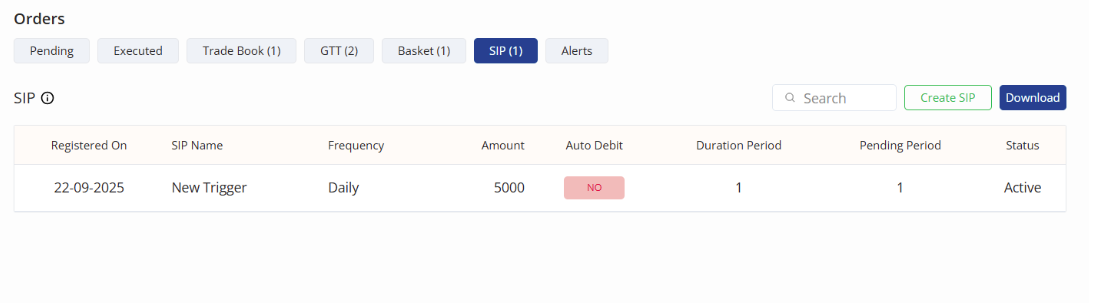
The SIP feature allows you to invest a fixed amount at regular intervals (daily, weekly, monthly, etc.) in selected stocks or ETFs, similar to mutual fund SIPs. This helps build discipline in investing and averages out the cost over time.
Steps:
- Click on Orders.
- Click on SIP.
- Click on Create new SIP.
- Enter a name.
- Select the basket.
- Set the preferred date and time.
- Click on Create.
Alerts
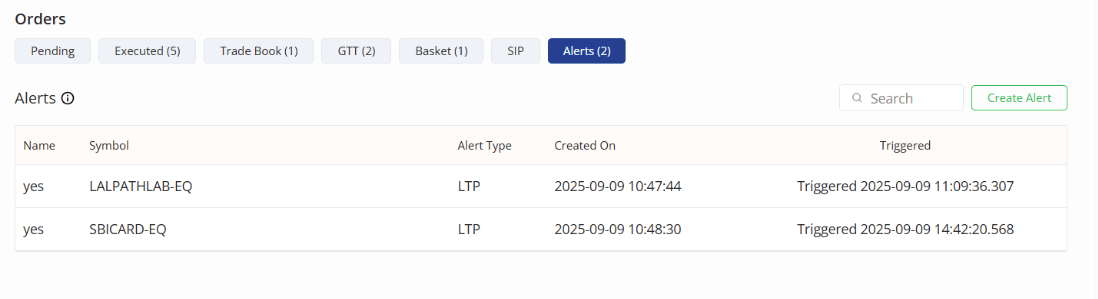
The Alerts feature allows you to set price-based notifications for stocks. When the specified condition is met, the alert is triggered and you are notified. This helps track stock movements without constantly monitoring the market.
To create an alert:
- Click on the More context menu on an instrument.
- Select Create Alert.
- Enter a name.
- Select the Property as per requirement.
- Enter the value.
- Create.
Sticky Order Window
By default, when an order is placed on Kite, the order window automatically closes after placement. While this is convenient for casual traders, it can be inconvenient for active traders who frequently place multiple orders with the same trading parameters (e.g., order type, quantity, price).
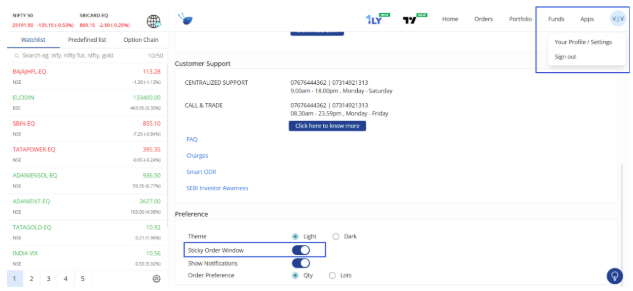
The Sticky Order Window feature solves this issue by keeping the order window open even after an order is placed. This allows traders to quickly place multiple orders with similar details without reopening the order window each time.
How to Enable Sticky Order Window
Follow these steps to enable the Sticky Order Window feature in Kite Web:
- Click on your User ID at the top-right corner of the screen.
- A dropdown menu will appear.
- Select Your Profile / Settings.
- (Refer to Screenshot 2)
- In the Preferences section, locate the option for Sticky Order Window.
- Toggle the switch ON (blue).
Market Timings
Equity
- Pre-market session: 9:00 AM – 9:15 AM
- Normal trading session: 9:15 AM – 3:30 PM
- Post-market session: 3:40 PM – 4:00 PM
🔹 IPO Listing: All new IPOs are listed at 10:00 AM.
On listing day, the pre-open session for IPOs runs from 9:00 AM to 10:00 AM, during which buy and sell orders are collected to reduce volatility and improve price discovery.
Currency
- Trading hours: 9:00 AM – 5:00 PM
Commodity
Non-agri commodities (internationally referenceable)
- March to November: 9:00 AM – 11:30 PM
- November to March: 9:00 AM – 11:55 PM
Includes:
- Base Metals: Aluminium, Copper, Lead, Nickel, Zinc, MCX Metldex
- Bullion: Gold, Gold Mini, Gold Guinea, Gold Petal, Silver, Silver Mini, Silver Micro, MCX Bulldex
- Energy: Crude Oil, Natural Gas, MCX Enrgdex
Agri commodities (internationally referenceable)
- Cotton, CPO, Kapas → 9:00 AM – 9:00 PM
Other agri commodities
- Cardamom, Menthaoil, Rubber → 9:00 AM – 5:00 PM
Market Holidays
Markets remain closed on trading holidays. For the full holiday calendar, refer to Alice blue broker’s market holiday schedule. Click here to view